Keep an Eye on Login Password Changes in SQL Server to Minimize the Risk of Account Compromise
No user should ever change a login password for Windows SQL Server without proper authorization. Unfortunately, by default, SQL Server does not keep track of login password changes, so if someone alters a login password in our SQL server environment, we will not even know it happened, let along be able to determine who changed the password. This lack of a password change log makes it difficult to properly control the database; in fact, not being able to audit login changes puts our SQL Server security and critical data at risk.
Create and enable a SQL Server audit
Run SQL Management Studio and execute the following T-SQL code to create and enable a SQL Server audit and a SQL Server audit specification, adjusting the path to the logs as needed:
-- Create a server audit.CREATE SERVER AUDIT AuditSQL TO FILE ( FILEPATH ='\\SQL\Audit\' ) WITH ( QUEUE_DELAY = 1000, ON_FAILURE = CONTINUE );GO-- Create a server audit specification for login password changes.CREATE SERVER AUDIT SPECIFICATION User_pw_changeFOR SERVER AUDIT AuditSQL ADD (LOGIN_CHANGE_PASSWORD_GROUP);GO-- Enable the audit.ALTER SERVER AUDIT AuditSQLWITH (STATE = ON);GOTo view login password changes
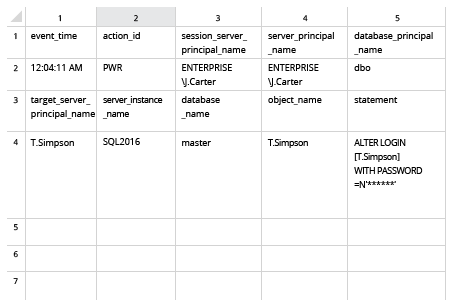
To view login password changes, execute the following code in SQL Management Studio:


SELECT * FROM sys.fn_get_audit_file ('\\SQL\Audit\*',default,default)WHERE action_id = 'PWR'GOOpen log
Open the file produced by the script in MS Excel.